A silent LG TV can turn movie night into a frustrating guessing game. You're ready to relax, hit play, and... nothing. The good news is, an LG TV with no sound often has a straightforward fix, and you don't need to be a tech expert to solve it. This guide is your complete roadmap to diagnosing and restoring audio to your LG TV, connecting you to deeper dives for every possible scenario.
The First Steps: Simple Checks That Often Solve Everything
Before diving into complex settings, let's cover the absolute basics. Many sound issues stem from simple oversights like a muted remote or an incorrect input. These initial checks are quick, easy, and surprisingly effective.
- Is Your Volume Actually Up?
It sounds obvious, but double-check your TV's volume level and ensure it isn’t muted. Sometimes a forgotten press of the mute button on your remote is the culprit. Also, if you're using a separate sound system, confirm its volume isn't set to zero or muted. - A Quick Power Cycle Can Work Wonders
Just like rebooting a computer, a soft reset can clear minor glitches. Unplug your LG TV from the power outlet for at least 60 seconds, then plug it back in. This often resolves temporary software hiccups that might be blocking audio. - Confirm Your Input Source
Are you watching cable, a streaming device, or a game console? Make sure your TV's input source (e.g., HDMI 1, HDMI 2) matches the device you're trying to get sound from. A mismatch here means video, but no corresponding audio.
For a comprehensive walkthrough of these essential first steps and more, check out our guide on Basic Troubleshooting & Quick Fixes.
When Connections Get Complicated: External Devices & Cables
If your LG TV is connected to external devices like a soundbar, home theater system, or a media player via HDMI, the problem might lie with the connection itself, the cable, or the device's settings. HDMI is fantastic, but it can also be a source of frustration when audio goes missing.
- HDMI ARC vs. TV Speaker: Knowing Your Sound Output
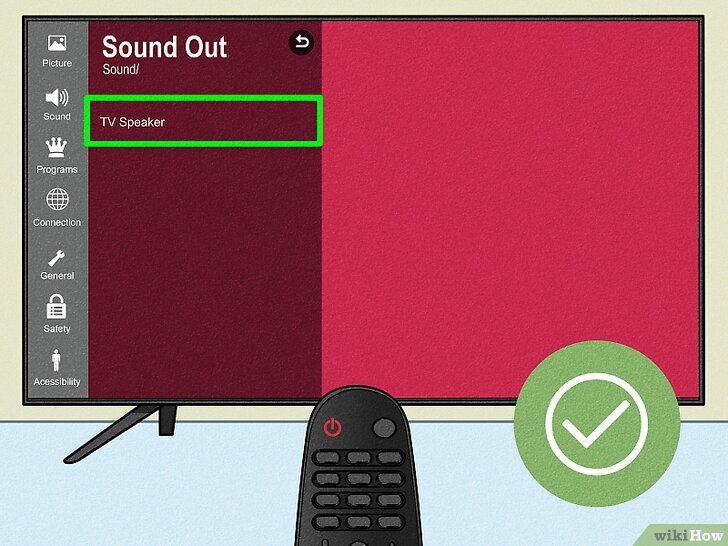
Your LG TV needs to know where to send the sound. If you have a soundbar or receiver connected via HDMI ARC (Audio Return Channel), you'll need to select 'HDMI ARC' as your Sound Out option in the TV settings. If you want sound from the TV's built-in speakers, choose 'TV Speaker'. Incorrectly choosing 'Audio Out' when nothing is connected to that specific port will result in silence. - Test Your HDMI Ports and Cables
A faulty HDMI cable or a damaged port can prevent audio signals from reaching your TV or sound system. Try connecting your device to a different HDMI port on your LG TV. If you have a spare, swap out your current HDMI cable with a new one. This simple test can quickly pinpoint if the hardware itself is the issue. - Check the Connected Device's Audio Settings
Sometimes, the device you're trying to get sound from (like a Blu-ray player or streaming stick) might have its own audio output settings. Ensure it's configured to send audio via HDMI and not, for example, via an optical cable if you're not using one.
Experiencing specific issues with your soundbar or external devices? Dive deeper into solutions for various connection types in our dedicated pillar guide on External Audio Device & Cable.
Navigating LG's Internal Audio Settings for Optimal Sound
Your LG TV's sound settings are a powerful toolkit for managing audio output. Sometimes, an update, a power surge, or even an accidental button press can alter these settings, leading to a sudden loss of sound. Understanding how to configure them is key.
- The Critical 'Sound Out' Setting
Access your TV's Settings → Sound → Sound Out. Here, you'll choose whether audio comes from 'TV Speaker', 'HDMI ARC', 'Optical Out', or even Bluetooth. This is often the first place to check if sound disappears after an LG TV update, as updates can sometimes reset this to default. - Digital Sound Out and Audio Format
For streaming apps or external devices, the 'Digital Sound Out' setting (found under Settings → All Settings → Sound) can be crucial. Try setting it to 'Auto' or experimenting with 'PCM' instead of 'Bitstream', especially if you're having trouble with specific apps like Netflix. Sometimes, an app expects a certain audio format that your current setting isn't providing. - Resetting Your TV's AV Settings
If you've tinkered with too many audio options or aren't sure what's been changed, a quick AV settings reset can bring everything back to factory defaults without affecting other TV settings. Navigate to Settings → All Settings → Sound → Reset to give your audio configuration a clean slate.
To master all the nuances of your LG TV's sound configurations and troubleshoot specific settings-related problems, our article on LG TV Internal Audio Settings provides a comprehensive guide.
Solving Sound Glitches: Apps, Firmware, and Updates
Modern LG TVs are smart TVs, meaning software, apps, and firmware play a significant role in their functionality. Bugs, outdated apps, or even a recent firmware update can sometimes be the root cause of sound problems.
- No Sound in Specific Apps (e.g., Netflix, YouTube)
If sound is fine on live TV or other inputs but missing only in streaming apps, the issue is likely app-specific.
- Reboot the TV: Unplug it for 60 seconds.
- Check In-App Volume: Some apps have their own independent volume controls.
- Clear Cache/Update/Reinstall App: Head to the LG Content Store to update or reinstall the problematic app. Clearing its cache can also resolve data conflicts.
- Sound Disappears After an LG TV Update
LG software updates, while beneficial, can sometimes inadvertently alter settings or introduce temporary bugs. If your sound vanished right after an update, first recheck your 'Sound Out' setting, as it might have reverted to default. Manually restarting the TV (unplugging it) and even toggling Simplink (HDMI-CEC) off and back on can also help. - Firmware Updates: A Double-Edged Sword
While updates can cause issues, they are also frequently released to fix known bugs, including audio problems. Ensuring your TV's firmware is up to date can resolve lingering software glitches. If you've tried everything else, a firmware update might be the missing link.
For in-depth solutions to app-specific audio issues, post-update problems, and managing your TV's software, explore our guide on Software Glitches, Firmware Updates, and.
When All Else Fails: Advanced Diagnostics and Hardware Concerns
You've tried the basics, checked your cables, adjusted settings, and even reinstalled apps. If your LG TV still has no sound, it's time to consider more advanced diagnostics, which might hint at a hardware issue. While often daunting, knowing when to call for professional help is crucial.
- Running the Built-In Speaker Test
Most LG TVs include a diagnostic speaker test. Go to Settings → Sound → Sound Test. If your TV can play sound during this test, it confirms the internal speakers are functional, narrowing down the problem to external connections or specific software issues. If there's no sound during the test, it suggests a problem with the TV's internal audio components. - Considering a Factory Reset
This is a last resort, as it will erase all your personalized settings, Wi-Fi connections, and installed apps. However, a factory reset can resolve deep-seated software conflicts that no other troubleshooting step could fix. Be sure to back up any important information you might need before proceeding. - No Traditional Audio Output Jack? Modern Solutions
Newer LG TVs often lack the old 3.5mm audio jack. If you're looking to connect older audio gear, you'll need to use modern alternatives like Optical Digital Out (TOSLINK), HDMI ARC/eARC, or Bluetooth for wireless speakers. An HDMI audio extractor can bridge the gap for legacy equipment.
When you've exhausted all other options and suspect a deeper problem, it's time to consider potential hardware failures or Explore advanced hardware diagnostics. Our guide provides more detailed steps and helps you determine if professional service is needed.
A Final Thought on Restoring Your LG TV's Voice
Losing sound on your LG TV can be frustrating, but with a systematic approach, most issues can be resolved right from your living room. By working through these common scenarios and utilizing our detailed pillar guides, you'll be well-equipped to bring your TV's audio back to life. Don't let a silent screen ruin your entertainment; arm yourself with knowledge and get that sound soaring again!