Setting up your LG TV's internal audio shouldn't feel like deciphering ancient hieroglyphs. Whether you're a casual viewer or an audiophile on a budget, mastering your LG TV Internal Audio Settings Configuration is your ticket to a significantly better listening experience, directly from your television's built-in speakers or a connected basic sound system. Forget about tinny dialogue or flat music – with a few tweaks, you can transform your TV's sound profile to match exactly what you're watching.
At a Glance: Key Steps for LG TV Audio Mastery
- Access Settings: Press the "Settings" (gear) button on your remote, then navigate to "Sound" or "Audio."
- Choose a Sound Mode: Select from presets like Standard, Cinema, Music, Sports, Clear Voice, or Game, depending on your content.
- Fine-Tune Manually: Dive into "Custom" mode to adjust Bass, Treble, and Balance for personalized sound.
- Manage Output: Direct sound to your TV speakers, an external soundbar, or a home theater system via "Sound Out."
- Fix Lip-Sync: Use "Audio Sync" to perfectly match dialogue with on-screen action.
- Normalize Volume: Enable "Auto Volume Leveling" to prevent jarring volume spikes.
- Troubleshoot: Check connections, mute status, or reset settings to default if issues arise.
Why Your LG TV's Sound Settings Deserve Your Attention
Most of us simply plug in our new LG TV and accept the default audio settings. While convenient, this often means you're missing out on the full dynamic range and clarity your TV is capable of. Think of it like a chef using only salt and pepper when an entire spice rack is available. LG TVs, even without external speakers, offer a robust suite of internal audio adjustments designed to optimize sound for different content types, room acoustics, and personal preferences. Investing a few minutes here can dramatically improve everything from movie dialogue to sports commentary.
Your Sound Command Center: Accessing LG TV Audio Settings
Ready to take control? The journey to superior sound begins with your LG remote:
- Power On: Ensure your LG TV is powered on and displaying content.
- Locate "Settings": Find the "Settings" button on your remote control – it usually looks like a gear icon (⚙️). Press it.
- Navigate to Sound: A quick menu will pop up on your screen. Using the arrow keys on your remote, navigate to and select "Sound," "Audio," or "Audio Settings." The most common path is
Settings > Sound > Sound Mode. This is your primary hub for all internal audio configuration.
The Foundation: Mastering Volume and Mute
Before diving into advanced settings, let's ensure you're comfortable with the basics.
- Volume Control: Use the dedicated "+" and "-" buttons on your remote to increase or decrease the audio output. Simple, yet essential for immediate adjustment.
- Instant Silence: The "Mute" button is your friend for sudden interruptions. Press it once for immediate silence; press it again to unmute and restore your previous volume level.
Unlocking Your TV's Sonic Personality: Understanding Sound Modes
Within the "Sound" menu, you'll discover a range of pre-configured "Sound Modes." These are like audio presets, each designed to enhance specific types of content by adjusting various frequencies, bass levels, and virtual surround effects. Selecting the right mode is the quickest way to improve your listening experience.
Let's break down the most common ones:
- Standard Mode: This is your everyday workhorse. It offers a balanced sound profile, suitable for general TV viewing like news, documentaries, or casual shows. It aims for a neutral output, ensuring dialogue, background music, and sound effects are all present without any single element dominating.
- When to Use: Default for most content, especially if you're not actively thinking about sound.
- Cinema Mode: Prepare for an immersive experience. Cinema Mode amplifies surround sound effects, deepens bass, and widens the soundstage, aiming to replicate a movie theater atmosphere. It prioritizes impactful audio, making explosions rumble and musical scores swell.
- When to Use: Best for films, action sequences, or any content with a rich soundtrack.
- Caveat: It might occasionally overpower dialogue-heavy scenes and often benefits from pairing with a soundbar or external speakers for true depth.
- Music Mode: Designed to bring out the best in concerts, music videos, or streaming playlists. This mode prioritizes clarity, detail, and a balanced frequency response, ensuring instruments and vocals sound natural and crisp.
- When to Use: Whenever music is your primary focus.
- Sports Mode: Optimizes audio specifically for live sports broadcasts. It often enhances crowd noise and commentary while minimizing background effects, placing you right in the stadium action.
- When to Use: For live football, basketball, racing, or any sporting event.
- Clear Voice Mode: This is a lifesaver for dialogue-heavy content. It boosts vocal frequencies and actively reduces background noise, making speech crisp and significantly more intelligible. If you find yourself constantly rewinding to catch dialogue, this mode is for you.
- When to Use: Ideal for news broadcasts, talk shows, podcasts, or older films where dialogue can be muffled.
- Caveat: Can sometimes make background music or ambient effects feel recessed.
- Game Mode: Built for gamers, this mode minimizes audio latency, ensuring sound effects are perfectly synchronized with on-screen action. It also often enhances directional audio cues, giving you a competitive edge by making footsteps or distant gunshots clearer.
- When to Use: During competitive gaming sessions where real-time sound is critical.
- Caveat: May sacrifice some overall sound depth for speed and clarity of in-game effects.
- Quick Tip: Most LG TVs allow you to switch between these modes on the fly via the remote's quick settings menu, letting you adapt your sound as your content changes.
Beyond Presets: Fine-Tuning with Custom Audio Adjustments
While sound modes are great starting points, true personalization comes from manual adjustments. If available, selecting "Custom" within the Sound Mode menu (or a similar "User" or "Expert" setting) unlocks individual controls for a more tailored sound experience.
Here, you'll typically find:
- Bass: Controls low-frequency sounds. Increasing bass adds depth and rumble, making explosions more impactful and deep voices richer. Decreasing it can prevent muddiness, especially in smaller rooms.
- Treble: Manages high-frequency sounds. Boosting treble can make dialogue sharper and high-pitched elements (like cymbals or high notes) clearer and more distinct. Reducing it can soften harsh sounds.
- Balance: This setting lets you shift the sound output between the left and right speakers. It's crucial if your seating position isn't perfectly centered or if one speaker sounds louder than the other. Adjust it to ensure dialogue or music feels evenly distributed.
Actionable Insight: Dialing in Your Custom Sound
Avoid the temptation to max out Bass or Treble, as this can lead to distortion or a fatiguing listening experience.
- Start Neutral: Begin with default levels (usually 0) for Bass and Treble.
- Incremental Tweaks: Adjust incrementally, typically within ±5 levels.
- Content Examples:
- For action movies or music with heavy beats: Try +2-3 Bass, +1-2 Treble.
- For nature documentaries or news: Keep settings flatter, maybe +1 Bass and 0 Treble for natural clarity.
- For dialogue focus (similar to Clear Voice): Consider +1 Bass, +2-3 Treble.
- Room Acoustics Matter:
- Small, carpeted rooms: May benefit from slightly reduced bass to prevent boominess.
- Large, open spaces: Might require a treble boost for clarity, as high frequencies tend to dissipate faster.
- Use the Sound Test: Many LG TVs include a "Sound Test" feature in the audio menu. This plays a sample sound, allowing you to hear your adjustments in real-time without the distraction of video content. It’s an invaluable tool for finding your sweet spot.
Streamlining Your Sound: Auto Volume Leveling Explained
Have you ever been enjoying a quiet movie, only for a commercial to blast through your speakers, making you scramble for the remote? "Auto Volume Leveling" (sometimes called "Auto Volume" or "Volume Stabilizer") is your solution.
Accessible via the "Sound Mode" menu, this feature normalizes volume levels across different channels, apps, or even between program content and commercials. It works by compressing louder sounds and boosting quieter ones, aiming for a consistent listening experience.
Actionable Insight: A Small Adjustment, Big Impact
- When to Enable: This is a highly impactful adjustment for households sensitive to abrupt volume changes, especially during late-night viewing when you don't want to disturb others.
- Potential Trade-off: While excellent for comfort, it can sometimes slightly sacrifice the dynamic range of audio, meaning the subtle differences between very quiet and very loud sounds might be less pronounced. For critical listening of films or music, you might prefer to keep it off.
When Sound Doesn't Match Sight: Tackling Audio Sync (Lip-Sync) Issues
Nothing pulls you out of a movie faster than seeing characters' lips move out of sync with their dialogue. This "lip-sync" issue occurs when the audio and video signals get out of synchronization. Thankfully, your LG TV provides a fix.
Steps to Adjust Audio Sync:
- Navigate: Go to
Settings > Sound > Sound Out. - Locate "Audio Sync": Among the options, you'll find "Audio Sync" or "AV Sync."
- Adjust the Delay: Use the left and right arrow keys on your remote to incrementally adjust the delay (often measured in milliseconds).
- If audio is ahead of video, you need to add a positive delay (move the slider to the right).
- If audio is behind video, you need to add a negative delay (move the slider to the left, if available, or adjust external devices).
- Test and Refine: Play a scene with clear, close-up dialogue and lip movements as your reference. Make small adjustments, then watch for a few seconds to see if the alignment improves.
Actionable Insight: Patience is Key
The ideal delay setting can vary. It depends on your specific LG TV model, any external devices connected (like a soundbar or AV receiver), and even the content itself. Take your time, focus on subtle cues, and don't be afraid to experiment until the audio and video align seamlessly. If you're using a soundbar, sometimes the lip-sync adjustment needs to happen on the soundbar itself, or both devices might need slight tweaks.
Redirecting the Symphony: Managing Audio Output for External Devices
Your LG TV isn't just about its internal speakers. It's designed to be the hub for all your audio, allowing you to direct sound to external systems for a truly cinematic or immersive experience. This is where the "Sound Output" or "Audio Output" settings become critical.
- Locate "Sound Output": In the main audio settings menu, look for "Sound Output" or "Audio Output."
- Select Your Device: Here, you'll choose where the sound goes:
- TV Speaker: Your LG TV's built-in speakers.
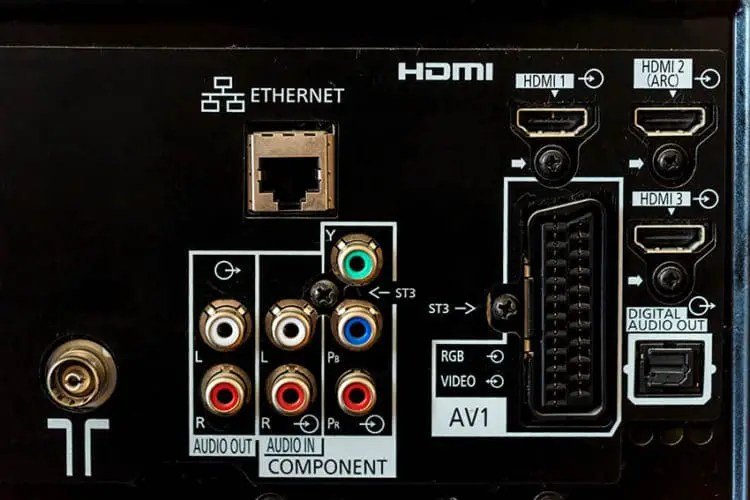
- HDMI ARC: For soundbars or AV receivers connected via an HDMI cable that supports Audio Return Channel.
- Optical Out: For older soundbars or receivers connected via an optical digital cable.
- Bluetooth: For wireless headphones or speakers.
- Wi-Fi (LG Sound Sync): For compatible LG soundbars or speakers that connect wirelessly over Wi-Fi, offering higher fidelity than Bluetooth.
Steps for External Speakers/Soundbars:
- Connect First: Ensure your external audio device (soundbar, receiver, home theater system) is properly connected to your LG TV using the appropriate cable (HDMI, optical, etc.) or paired via Bluetooth/Wi-Fi.
- Select Output: In the TV's audio output settings, explicitly select the connected audio device as the sound output. For example, if you're using an LG soundbar via HDMI ARC, choose "HDMI ARC."
- Disable Internal Speakers: Crucially, if you're using external speakers, disable your TV’s internal speakers in the sound menu. This prevents audio overlap, echo, or a muddled sound experience. Your external system should be the sole source of sound.
Diving Deeper into HDMI ARC
HDMI ARC (Audio Return Channel) is a game-changer for simplifying home theater setups.
- What it is: It allows a single HDMI cable to handle both video signals from your TV to a soundbar/receiver and audio signals from the TV back to the soundbar/receiver. This means you only need one cable for audio and video, reducing clutter and complexity.
- Benefits:
- Simplicity: One cable for everything.
- Control: Often, you can control the soundbar's volume with your LG TV remote.
- High-Quality Audio: Supports various surround sound formats.
- Setup: Both your LG TV and your external audio device must support HDMI ARC. Look for an "ARC" label next to one of the HDMI ports on your TV and soundbar (e.g., HDMI 2 (ARC)). Connect a high-speed HDMI cable between these specific ARC ports.
- Example: If you have an LG soundbar like the SP8YA or SN7Y, connecting it via the ARC-enabled HDMI port on your LG TV is the recommended method for the best integration and control.
Optical Out and Bluetooth: Other Output Options
- Optical Digital Audio Out: A reliable way to send audio to older soundbars or receivers that don't support HDMI ARC. It's a robust digital connection, though it typically doesn't support the highest-bandwidth audio formats like uncompressed Dolby Atmos found on some Blu-rays.
- Bluetooth: Offers wireless convenience for headphones or portable speakers. Be aware that Bluetooth can sometimes introduce a slight audio delay (latency), which might lead to minor lip-sync issues. If you experience this, you might need to adjust the Audio Sync setting (if available) for Bluetooth output.
Common Hurdles & Quick Fixes: Troubleshooting LG TV Audio
Even with the best settings, audio problems can arise. Here are some quick troubleshooting steps for your LG TV:
- Check All Cables: This is the most common culprit, especially if you're using external audio devices. Ensure all HDMI, optical, or analog cables are securely plugged into both the TV and the audio device. A loose connection can lead to no sound or intermittent audio.
- Verify Mute Status: Double-check that neither your LG TV nor any connected audio devices (soundbar, receiver) are accidentally muted.
- Input Selection: If using an external device, ensure it's on the correct input channel (e.g., HDMI 1, Optical).
- Power Cycle: Sometimes, a simple reboot can fix glitches. Turn off your TV and any connected audio devices, unplug them from the wall for 60 seconds, then plug them back in and power them on.
- Reset Audio Settings to Default: If you've made many adjustments and are experiencing persistent issues or simply want to start fresh, resetting the audio settings can be a lifesaver. This option is typically found at the bottom of the main "Sound" menu. It will revert all custom settings back to their factory defaults.
- Firmware Updates: Ensure your LG TV's firmware is up to date. Manufacturers often release updates that fix bugs, including audio-related issues. You can usually check for updates in
Settings > All Settings > General > About This TV > Check for Updates. - Still No Sound? If you've tried everything and your LG TV still isn't producing sound, it might be a more complex issue requiring deeper diagnostics. For comprehensive guidance on resolving various sound problems, check out our detailed LG TV no sound troubleshooting guide. It covers everything from basic checks to advanced solutions.
Making It Stick: Beyond the Buttons – Best Practices for Your LG TV Audio
Configuring your LG TV's audio settings isn't a one-and-done task; it's an ongoing journey to the best possible sound. Here are some best practices to maintain your sonic bliss:
- Experiment and Adapt: Don't be afraid to try different sound modes or custom settings for various content. Your preferences might change, and different shows or movies truly benefit from specific profiles.
- Consider Your Environment: Your room's size, furnishings, and even wall materials significantly impact how sound is perceived. A large, empty room will sound different from a small, carpeted one. Factor this into your custom adjustments.
- Regular Checks: If you notice a sudden dip in sound quality or a new audio issue, run through the basic troubleshooting steps before assuming a major problem.
- Keep Software Updated: Enable automatic software updates for your LG TV and any connected LG soundbars. Updates can bring performance improvements and bug fixes that enhance audio quality and stability.
- Listen Critically: Pay attention to how dialogue, music, and effects sound. Is the dialogue clear? Is the bass muddy or punchy? Are high notes piercing or crisp? Developing a critical ear will help you fine-tune your settings more effectively.
By taking the time to understand and adjust your LG TV's internal audio settings, you're not just flipping switches – you're unlocking its full potential, transforming your everyday viewing into a richer, more enjoyable experience. Happy listening!