There's nothing quite as frustrating as settling in for a movie, the big game, or your favorite show, only to be met with a silent screen. If your LG TV is suddenly suffering from a case of "no sound," you're not alone. This is a common hiccup, but often, the solution is simpler than you might think. This comprehensive guide provides Basic Troubleshooting & Quick Fixes for LG TV No Sound, designed to help you diagnose and resolve the issue quickly, without needing a tech degree. We'll walk through everything from basic checks to advanced software resets, ensuring you can get your audio back and enjoy your entertainment.
At a Glance: Quick Fixes for a Silent LG TV
- Check the Obvious: Mute, volume, and correct input selection are often the culprits.
- Power Cycle: Unplug your TV for 60 seconds and hold the power button to hard reset it.
- Test Sources: Try different apps, HDMI devices, and live TV to pinpoint the issue.
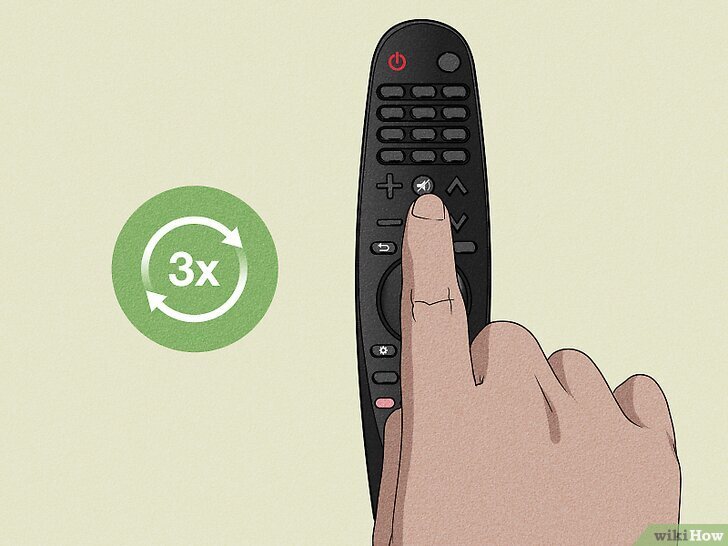
- AV Reset: Use the hidden menu (
Mutebutton x3) to restore audio settings. - Sound Test: Use the built-in diagnostic to check your TV's internal speakers.
- HDMI ARC/eARC: Verify cable, port, and "Digital Sound Out" settings (Pass Through, PCM).
- Software Refresh: Close apps, disable Quick Start+, or even temporarily change your LG Services Country.
The Silent Screen Syndrome: Why Your LG TV Isn't Speaking Up
Modern LG TVs, with their smart WebOS platform, offer incredible visuals and a seamless user experience. However, like any complex electronic device, they can run into audio problems. These issues typically stem from a few core areas:
- Simple Settings Snafus: An accidentally pressed mute button, a misconfigured volume, or the wrong audio output selected.
- Connection Confusion: Loose or faulty cables, incorrect HDMI port usage (especially with ARC/eARC), or communication breakdowns between your TV and external sound systems.
- Software Surprises: Bugs after a WebOS update, app crashes, memory overload, or a temporary glitch in the TV's audio drivers.
- Hardware Hurdles: Less common, but sometimes a component on the main board or the internal speakers themselves can fail.
Before you dive deep into complex solutions, it's crucial to systematically rule out the easy stuff. This methodical approach saves time and helps you understand the nature of the problem.
First Steps to Silence the Problem: Essential Basic Checks
When your LG TV goes silent, don't panic. Start with these fundamental checks – they resolve the majority of "no sound" complaints. Think of these as your initial diagnostic toolkit.
1. The Volume Dance: Mute, Volume, and Sound Mode
It might sound obvious, but we've all been there.
- Mute Button: Grab your LG remote and ensure the TV isn't muted. Look for the crossed-out speaker icon on the screen or remote. Press the mute button once or twice to toggle it.
- Volume Level: Slowly increase the volume using the remote. Is it simply set too low?
- Sound Mode: Sometimes, a specific sound mode (like "Cinema" or "Sports") can cause issues if it's misconfigured. Go to
Settings > Sound > Sound Mode Settingsand try switching to "Standard" or "AI Sound Pro" to see if that restores audio.
2. Testing Your Sources: Is the Silence Universal?
Understanding if the sound problem is everywhere or specific to one input is a critical diagnostic step.
- Built-in Apps: Try opening a streaming app directly on your LG TV (Netflix, YouTube, Disney+). Does sound work there?
- HDMI Devices: Switch to an external device connected via HDMI (Blu-ray player, gaming console, cable box). If sound works here but not on streaming apps, the issue is app-specific or network-related. If it doesn't work here, but does on apps, then the HDMI device or its connection is suspect.
- Live TV/Antenna: If you have an antenna or cable box connected for live TV, switch to a channel. Many users report that LG TV no sound solutions often begin by checking if live TV audio is working, as it isolates the issue to internal tuners versus external inputs.
3. External Gear Check: Soundbar, Home Theater, & Headphones
If you're using anything other than your TV's built-in speakers, you have another layer of potential issues to investigate.
- Power & Input: Ensure your external sound system (soundbar, receiver) is powered on and set to the correct input (e.g., "TV ARC," "Optical").
- Connections: Are cables (HDMI, optical) securely plugged into both the TV and the external device? Wiggle them gently to ensure a snug fit.
- Isolate the TV: Disconnect all external audio devices from your LG TV. Then, try to get sound from the TV's internal speakers. If the internal speakers now work, the problem lies with your external audio setup or its connection to the TV. If they still don't work, the TV itself is likely the culprit.
4. The Quick Refresh: Soft Reboot Your LG TV
A simple power cycle can clear temporary glitches in the TV's operating system or audio drivers.
- Unplug: Turn off your LG TV. Unplug it directly from the wall outlet (not just the power strip).
- Wait: Give it at least 60 seconds. This allows residual power to drain and the system to fully reset.
- Reconnect: Plug the TV back in and power it on. Test the sound again.
5. HDMI Connection Deep Dive
HDMI cables are powerful but can also be finicky. If you're using HDMI for sound, pay close attention.
- Different Cable: Try swapping out your current HDMI cable for a new, known-good one. Cables can go bad, especially older ones or those under stress.
- Different Port: Plug your HDMI device into a different HDMI port on your LG TV. Sometimes, a specific port can become faulty.
- Source Audio Settings: Ensure the device connected via HDMI (e.g., Blu-ray player) is set to send audio through HDMI in its own settings menu.
Decoding the Silence: Diagnosing Your LG TV's Audio Issue
To effectively fix your LG TV's sound problem, it helps to understand why it might be happening. Is it a software hiccup, a bad cable, or a deeper hardware issue?
Understanding Potential Causes
LG TV sound problems often fall into these categories:
- Software & System Glitches: Your TV's WebOS is a mini-computer. Like any computer, it can experience issues. This could be due to:
- WebOS Issues: Especially after a recent update, new firmware might introduce bugs.
- Memory Overload: Too many background apps can hog resources, impacting audio.
- Crashed Audio Drivers: The software responsible for managing sound might have temporarily failed.
- "Quick Start+" Feature: This setting, designed for fast boot-up, can sometimes prevent a full system reset, allowing minor audio bugs to persist.
- Hardware & Connection Failures: Physical components or their links.
- Cables/Ports: Loose, damaged, or incompatible HDMI ARC/eARC or optical (TOSLINK) cables or ports are common culprits.
- Aging Components: In older TVs, internal components like capacitors on the mainboard can degrade, affecting sound output.
- Handshake & Compatibility Problems: When your TV talks to other devices.
- HDMI-CEC/Simplink: This communication protocol allows devices to control each other (e.g., turning on your soundbar with the TV). If it's buggy, audio signals might not pass correctly.
- eARC Protocols: For advanced audio formats, eARC requires a stable "handshake."
- Incorrect Audio Output Format: Your TV might be trying to send an audio format (like Dolby Atmos) that your soundbar doesn't support, resulting in silence.
Diagnose by Symptom Pattern
The symptoms tell a story. Pay attention to when and where the sound fails.
- "No sound on all inputs and apps": This is a strong indicator of a system-wide software glitch, a general audio driver failure, or a physical mainboard hardware problem. The built-in sound test (we'll get to this!) is crucial here.
- "Sound works on live TV but not streaming apps (Netflix, YouTube)": This usually points to an app-specific issue, a corrupt app cache, or memory overflow. Network connectivity issues can also play a role, as streaming relies on a stable internet connection. You might find solutions for app-specific problems by consulting guides on smart TV app troubleshooting.
- "Internal speakers work, but HDMI ARC/Soundbar has no audio": This clearly suggests a problem with the connection between your TV and external audio device. It could be a handshake failure (HDMI-CEC), incorrect TV settings for digital output, or a faulty HDMI cable. More details on HDMI ARC and CEC settings can often resolve these issues.
- "Sound disappeared immediately after a system update": This is a tell-tale sign of a firmware bug or an incompatible audio driver introduced by the update. The TV's software needs a deeper reset or re-initialization.
Your Action Plan: Step-by-Step Fixes for LG TV No Sound
Now that you have a better understanding of the potential causes, let's move into the specific actions you can take. These steps are arranged from simplest to more advanced.
1. Perform a Hard Reset (Power Cycle) – Deeper Than a Soft Reboot
This is more comprehensive than just unplugging. It drains all residual electricity, forcing the TV's components to truly power down and restart cleanly, which often reloads audio drivers.
- Turn off the TV using the remote.
- Unplug it from the wall outlet.
- Wait at least 60 seconds. (Yes, the full minute is important!)
- While unplugged, locate the physical power button on the TV itself. This is usually under the LG logo on the bottom center, or sometimes on the side/back. Hold this physical power button down for 30 seconds. This step is key to fully draining residual power.
- Plug the TV back in and power it on. Test the sound.
2. Unlock the AV Reset: The Hidden Menu Trick
LG TVs have a hidden "AV Reset" feature that can specifically reset audio settings to factory defaults without affecting other TV settings. This is a very effective fix for many software-related audio glitches.
- Ensure your TV is on.
- Grab your LG remote and press the Mute button 3 times quickly.
- A small hidden menu should appear on the screen.
- From this menu, select "AV Reset" and confirm.
- The TV may restart or just reset its audio system. Test for sound.
3. Test Your TV's Voice: The Built-in Sound Test
LG provides a diagnostic tool to check if the TV's internal speakers are physically capable of producing sound. This helps differentiate between a software/settings issue and a hardware failure.
- For WebOS 22/24 models (and newer): Go to
Settings > All Settings > Support > OLED Care > Device Self-Care > Sound Self-Diagnosis. - For Older WebOS models: Go to
Settings > Sound > Sound Test. - Follow the on-screen prompts. The TV will attempt to play a melody.
- If you hear the melody: Great news! Your TV's internal speakers and core audio hardware are functional. The problem likely lies with settings, external connections, or a specific app.
- If you hear no sound: This is concerning. It strongly suggests a physical hardware problem with your internal speakers or the main board's audio Integrated Circuit (IC). At this point, you're likely looking at a service call.
4. Mastering Your HDMI ARC/eARC Settings
If you're connecting a soundbar or AV receiver via HDMI, optimizing these settings is crucial. HDMI ARC (Audio Return Channel) and eARC (enhanced Audio Return Channel) are designed to simplify audio connections, but they can be tricky.
- Correct Port: Make sure your HDMI cable is plugged into the HDMI port labeled "ARC" or "eARC" on your LG TV. This is typically HDMI 2, but check your TV's manual or the labels on the back.
- Digital Sound Out Settings: Navigate to
Settings > Sound > Advanced Settings > Digital Sound Out. This is where you tell your TV how to process and send audio to external devices. - "Pass Through": This is generally the best choice for high-end soundbars or receivers that can decode advanced audio formats (like Dolby Atmos, DTS:X). It sends the raw audio stream directly.
- "PCM" (Pulse Code Modulation): This is a universal, uncompressed stereo format. It's often the most reliable option for older receivers, basic soundbars, or optical connections. If you're experiencing silence, switching to PCM can sometimes resolve compatibility issues.
- Avoid "Auto": While convenient, "Auto" can sometimes cause handshake issues or compatibility conflicts, leading to silence. Manually selecting "Pass Through" or "PCM" often yields better results.
- Toggle SIMPLINK (HDMI-CEC): Simplink is LG's name for HDMI-CEC. It enables devices to communicate. Go to
Settings > General > Devices > HDMI Settings > SIMPLINK (HDMI-CEC). Turn it off, wait a few seconds, then turn it on again. This forces your TV and connected device to re-establish their communication, often fixing audio handshakes. For more detailed instructions, you can refer to guides on troubleshooting LG TV HDMI issues.
5. Clearing the Clutter: Apps, Quick Start+, & Cache
If your sound issues are limited to specific streaming apps, this section is for you.
- Close Background Apps: Too many apps running in the background can consume memory and cause performance issues, including audio glitches.
- On your LG remote, long-press the "Back" button. This usually brings up a list of recently opened apps. Close them all.
- Disable Quick Start+: While convenient for fast boot-ups, "Quick Start+" keeps the TV in a low-power state instead of fully shutting down. This can prevent a true system reset, allowing minor bugs to persist.
- Go to
Settings > General > Devices > TV Managementand disable "Quick Start+". Perform a hard reset (unplug, hold power button) after disabling this feature to ensure a clean boot. - Reinstall Problematic Apps: Corrupted app cache files can cause sound problems. Deleting and reinstalling the app clears its cache.
- Go to the app store, find the problematic app, and select "Delete" or "Uninstall."
- Restart your TV (soft or hard reset).
- Reinstall the app and test for sound.
- Check In-App Volume: Some apps have their own volume controls independent of the TV. Check the app's internal settings.
- Switch 'Bitstream' to 'PCM' for Apps: Within certain streaming apps (or your TV's sound settings if it has an app-specific override), you might find an option for audio output. If it's set to "Bitstream," try changing it to "PCM" to see if that resolves the issue.
6. The Advanced Driver Refresh: Changing LG Services Country
This is a more advanced software fix that can force your LG TV to deeply refresh its core software drivers and legal agreements, which sometimes resolves persistent audio bugs, especially those following a firmware update.
- Go to
Settings > General > System > Location. - Change your "LG Services Country" to a neighboring country. For example, if you're in the US, try Canada or Mexico. If in the UK, try Ireland.
- Your TV will prompt you to restart to apply the changes. Confirm the restart.
- During the restart, the TV will re-download and reinstall legal agreements and core regional drivers. This process can often overwrite corrupt audio drivers.
- Once the TV has restarted and you verify the sound has returned, you can optionally switch your LG Services Country back to your original region by repeating the steps. The sound should remain.
- Note: This step does not factory reset your TV, but it does force a significant software refresh.
Beyond the Fixes: Smart Workarounds & When to Call for Backup
If you've tried all the above and your LG TV is still stubbornly silent, don't despair just yet. There are some clever workarounds, and a point where it's best to seek professional help.
Workarounds for No Audio Output Jack (or when ARC Fails)
Many modern LG TVs have minimized traditional analog audio output jacks (like headphone jacks or RCA). Here are your common alternatives for connecting external audio:
- Optical Digital Out (TOSLINK): Most soundbars and many older receivers have an optical input. Connect an optical cable from your TV's "Optical Digital Out" port to your sound system. Remember to set your TV's
Digital Sound Outto "PCM" for best compatibility with optical connections. If you're considering a new soundbar, check for optical input availability. You can find useful setup tips in a comprehensive soundbar setup guide. - HDMI ARC or eARC: As discussed, this is the preferred method for newer audio setups. Ensure you're using a high-quality, high-speed HDMI cable (preferably Ultra High Speed for eARC) and connected to the correct port.
- Bluetooth Speakers/Headphones: If your LG TV has Bluetooth (most modern WebOS models do), you can connect wireless headphones or a Bluetooth speaker. Go to
Settings > Sound > Sound Out > Bluetooth. Your TV will scan for nearby devices. This is a great temporary solution or for personal listening. - HDMI Audio Extractor: For older equipment that lacks HDMI ARC or optical inputs, an HDMI audio extractor can be a lifesaver. This small device connects in-line with your HDMI signal (e.g., between your streaming box and TV) and "extracts" the audio, providing optical, coaxial, or even analog RCA outputs.
When All Else Fails: Calling LG Support
You've exhausted all troubleshooting steps, including the Hard Reset, AV Reset, and the Built-in Sound Test confirms no sound from the internal speakers. At this point, it's highly probable you're dealing with a physical hardware failure. This could be a fault on the main board (which handles audio processing), damaged internal speakers, or other internal component issues.
- Gather Your Info: Before contacting LG, have your TV's model number, serial number, and purchase date ready. Detail all the troubleshooting steps you've already performed.
- Warranty Check: If your TV is still under warranty, LG Support will likely arrange for a repair or replacement. You can typically check your LG TV warranty and service options on their website.
- Professional Service: Even if out of warranty, LG Support can guide you on repair options or authorized service centers. Motherboard replacements are common hardware fixes for widespread "no sound" issues.
Don't let a silent screen ruin your entertainment. By following theseBasic Troubleshooting & Quick Fixes for LG TV No Soundsteps systematically, you're well-equipped to diagnose and often resolve the problem yourself. If you do reach a point where professional help is needed, you'll know exactly what to tell the technician, ensuring a quicker, more efficient resolution. Enjoy your sound!